Headline:
About:
This document explains how to install and connect to the GlobalProtect VPN on both Windows and macOS devices.
GlobalProtect allows your computer to securely access internal company resources from anywhere.
What is Global Protect?
GlobalProtect VPN is a secure connection application that enables access to internal company resources such as:
• Account Verification Portal (IDP Portal) - Verifies user identity securely
• M3 - Enterprise resource planning system
• Business Objects - Business reporting software
• Illustrator - Graphic design software
• Centric - Product lifecycle management system
- The VPN connection must be started manually you need access to internal resources. and can be stopped at any time via the system tray icon.
- Ensure your device has an active internet connection before connecting.
🌐 Windows:
1, Open the Company Portal from the Start Menu.
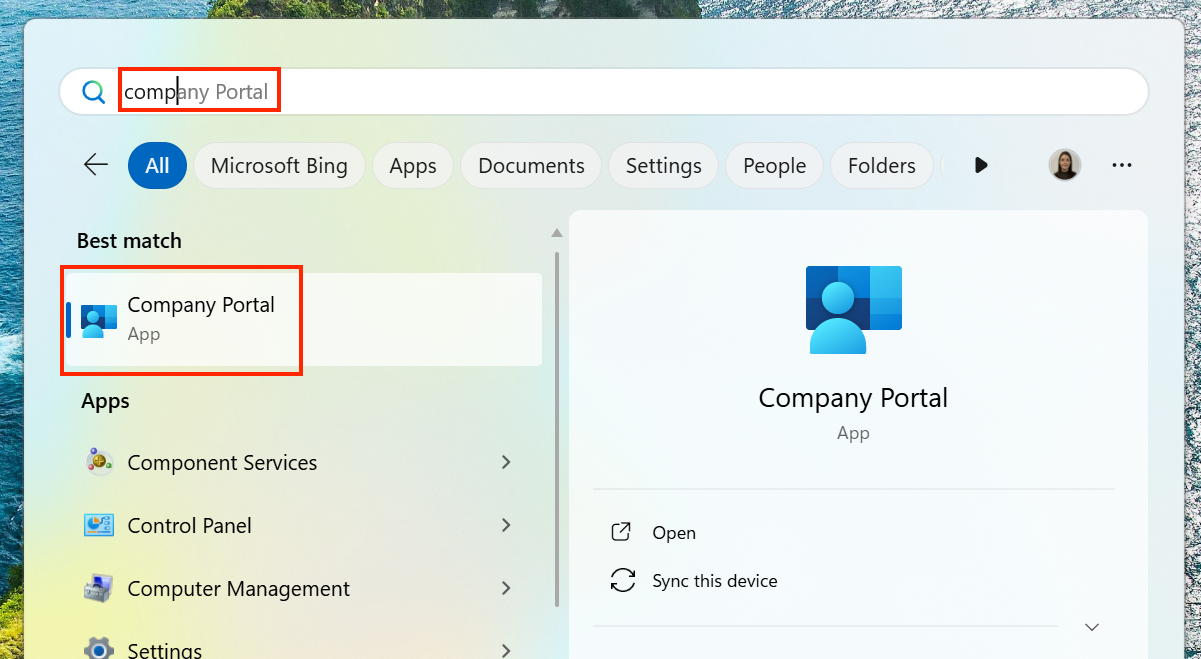
2, In the search box, type GlobalProtect.
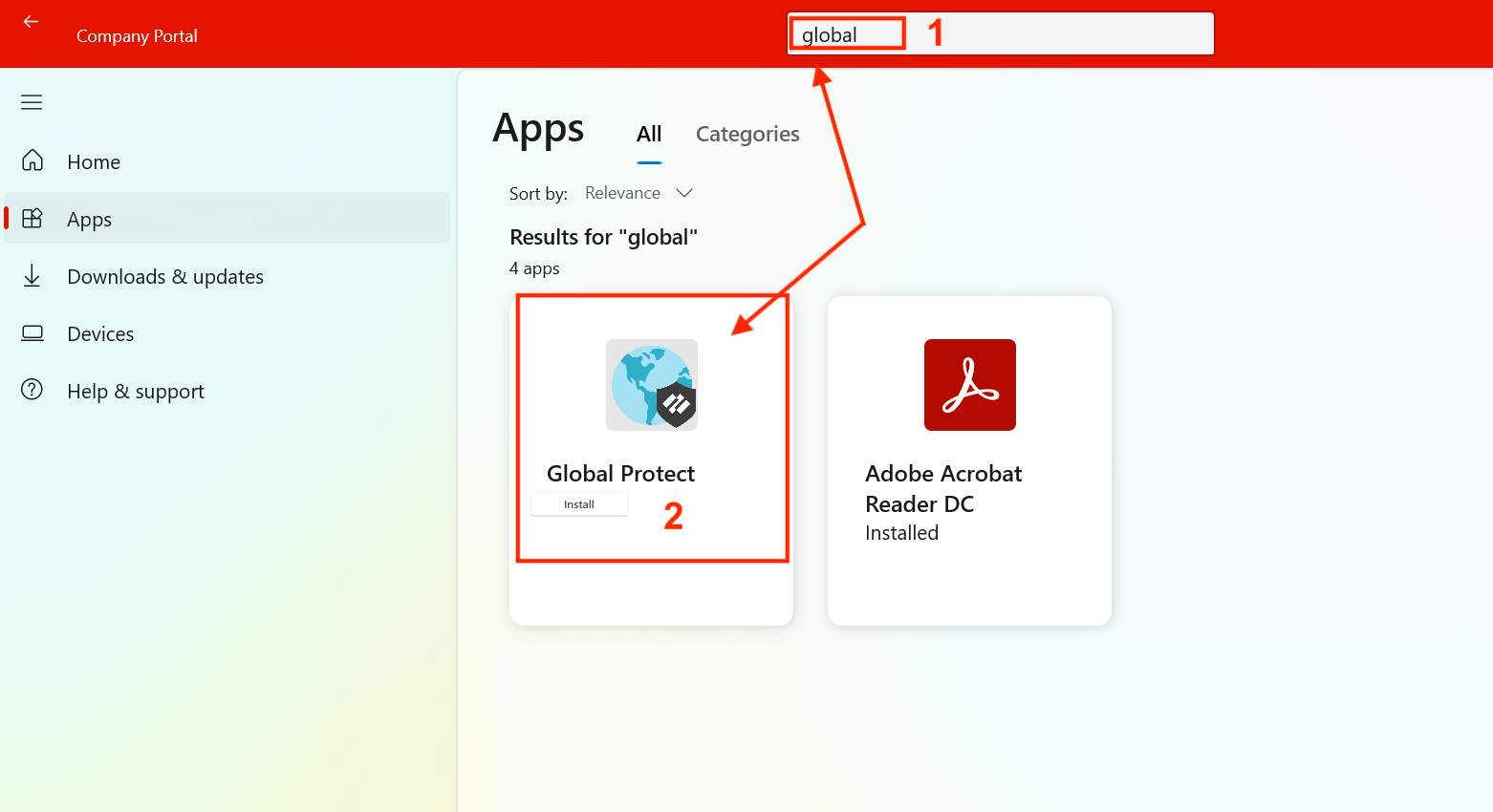
3, Select the app and click Install.
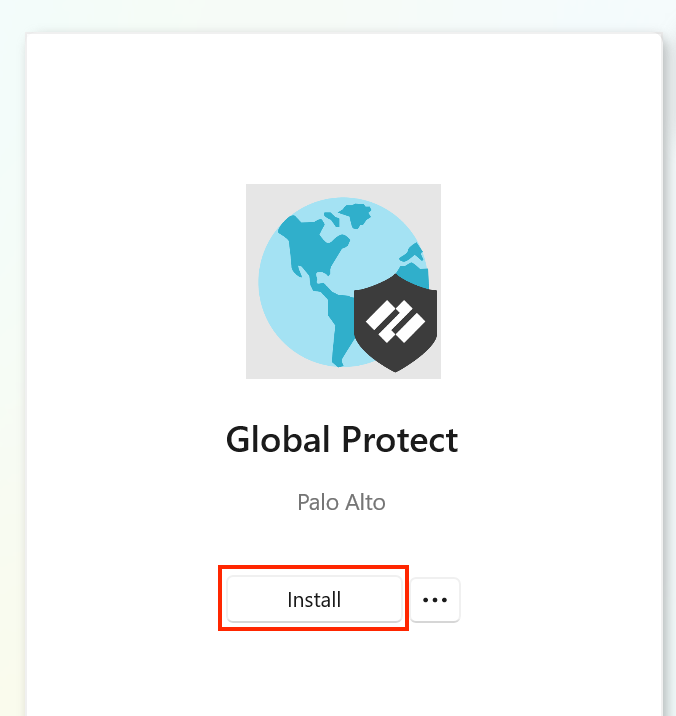
4, Wait for the installation to complete.
5, Click the GlobalProtect icon in the system tray.
6, Enter your company credentials if prompted.
7, The VPN will show Connected once the connection is established.
8, To disconnect, click the icon again and select Disconnect.
🌐 Mac:
1, Open the Self Service app from the Applications folder or Launchpad.

2, In the search box, type GlobalProtect.
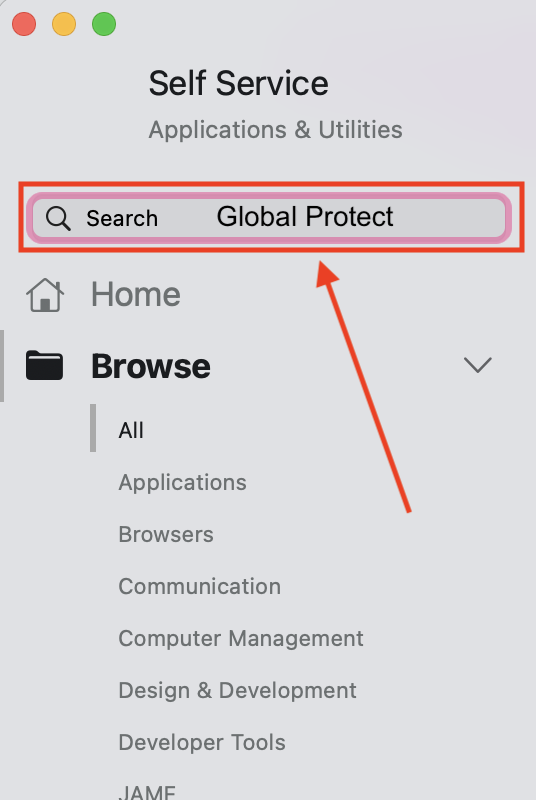
3, Select the app and click Install.
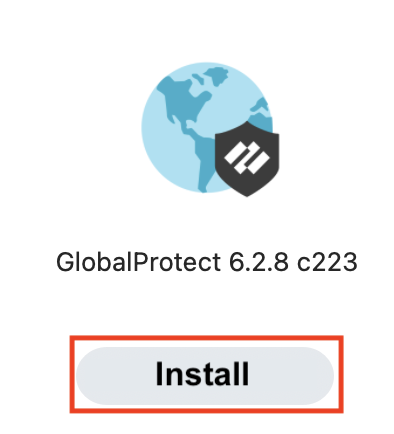
4, Wait for the installation to complete.
5, Click the GlobalProtect icon in the system tray (top menu bar).
6, Enter your company credentials if prompted.
7, The VPN will show Connected once the connection is established.
8, To disconnect, click the icon and select Disconnect.
And you are done 😄